Overview
The Web Console can show Dashboard elements above the links to reports. This is configured using a Solution.xml file contained within the top level Job Group folder. One example where this is used by default is the Active Directory Solution. It is possible to modify this to show additional or different information based on user requirements. It is also possible to remove the Dashboard by removing the dashboard element from the Solution.xml file.

Description
This is the default Solution.xml file for the Active Directory Solution:
<Solution>
	<Description>Comprehensive Active Directory auditing, reporting, and remediation for security, compliance, and operations.</Description>
	<Icon type="font-awesome">fa-users</Icon>
	<Dashboard>
		<BigNumbers>
			<Number>
				<Label>Domains</Label>
				<Query> SELECT COUNT(CanonicalName) as value FROM dbo.SA_ADInventory_Domains </Query>
				<Link>{67DD2FCA-77BD-4F59-9FFB-166E090FFAD8}</Link>
			</Number>
			<Number>
				<Label>Users</Label>
				<Query> select count([uv].[PrincipalId]) from [dbo].[SA_ADInventory_UsersView] as [uv] where uv.[IsDeleted] = 0 </Query>
				<Link>{67DD2FCA-77BD-4F59-9FFB-166E090FFAD8}</Link>
			</Number>
			<Number>
				<Label>Groups</Label>
				<Query> select count([gv].[PrincipalId]) from [dbo].[SA_ADInventory_GroupsView] as [gv] where gv.[IsDeleted] = 0 </Query>
				<Link>{67DD2FCA-77BD-4F59-9FFB-166E090FFAD8}</Link>
			</Number>
			<Number>
				<Label>Computers</Label>
				<Query> select count([cv].[PrincipalId]) from [dbo].[SA_ADInventory_ComputersView] as [cv] where cv.[IsDeleted] = 0 </Query>
				<Link>{67DD2FCA-77BD-4F59-9FFB-166E090FFAD8}</Link>
			</Number>
			<Number>
				<Label>Exceptions</Label>
				<Query> select count(*) from [dbo].[SA_ADInventory_ExceptionsView] as [ev] </Query>
				<Link>{20C2D09B-6F97-47F5-BE75-210F32BB7078}</Link>
			</Number>
		</BigNumbers>
		<Chart>
			<Title>Domain Objects</Title>
			<Query> SELECT DomainCanonicalName, COUNT(Id) FROM dbo.SA_ADInventory_PrincipalsView GROUP BY DomainCanonicalName </Query>
		</Chart>
		<Table>
			<Title>Domain Objects</Title>
			<Query> SELECT [DomainCanonicalName], [user], [group], [computer], (SELECT COUNT(*) FROM dbo.SA_ADInventory_ExceptionsView A JOIN dbo.SA_ADInventory_PrincipalsView B ON B.Id = A.PrincipalId WHERE B.DomainId = PivotTable.DomainId) as exceptions FROM ( SELECT DomainCanonicalName, ObjectClassName, Id, DomainId FROM dbo.SA_ADInventory_PrincipalsView WHERE ObjectClassName IN ('user', 'group', 'computer')) AS SourceTable PIVOT ( COUNT(Id) FOR ObjectClassName IN ([user], [group], [computer])) as PivotTable ORDER BY [DomainCanonicalName] </Query>
			<Columns>
				<Column sourceColumn="DomainCanonicalName">Domain Name</Column>
				<Column sourceColumn="user">Users</Column>
				<Column sourceColumn="group">Groups</Column>
				<Column sourceColumn="computer">Computers</Column>
				<Column sourceColumn="exceptions">Exceptions</Column>
			</Columns>
		</Table>
	</Dashboard>
</Solution>
Here we can set the Description, Icon & dashboard elements. The dashboard can contain, BigNumbers, Charts & Tables.
As an example I have modified the Active Directory dashboard to show stale information:
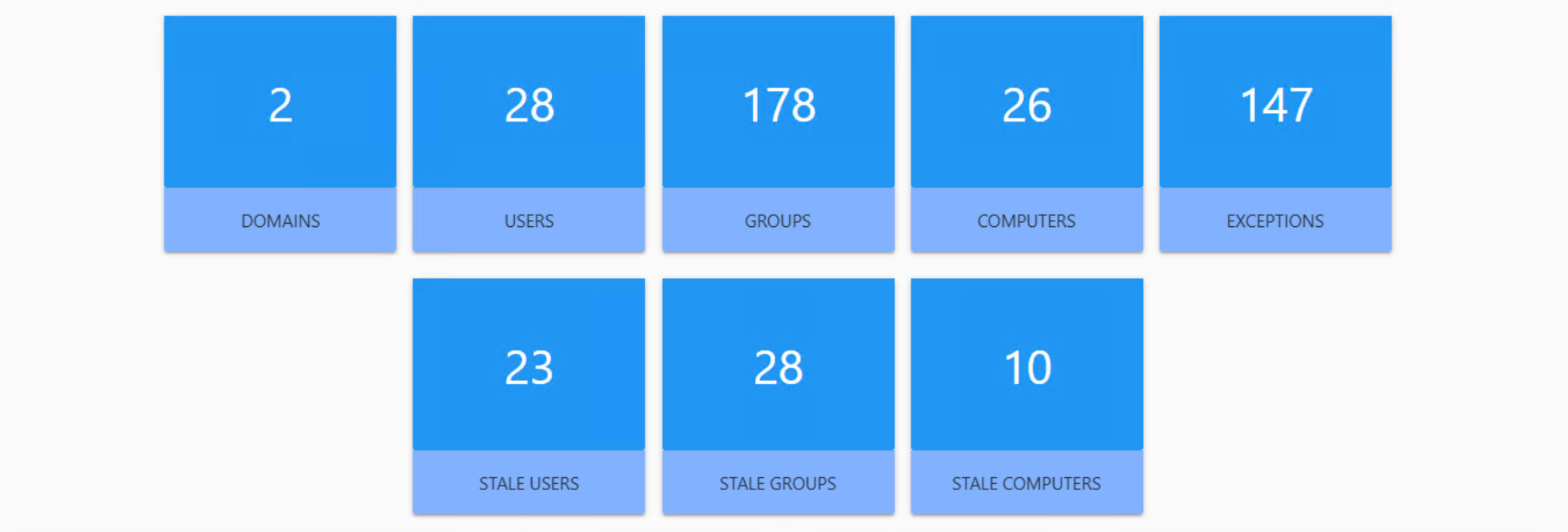
To do this I added this code within the BigNumbers element:
<Number>
	<Label>Stale Users</Label>
	<Query>
	select count(*) from [dbo].[SA_AD_StaleUsers_Details]
	</Query>
	<Link>{F17236FC-FBEA-461C-9A2A-1E157134E2E8}</Link>
</Number>
<Number>
	<Label>Stale Groups</Label>
	<Query>
	select count(distinct [Group]) from SA_AD_StaleGroups_Details
	</Query>
	<Link>{DAA7FEB7-C04A-4A0E-9FE0-F138A12B96D0}</Link>
</Number>
<Number>
	<Label>Stale Computers</Label>
	<Query>
	select count(*) from [dbo].[SA_AD_StaleComputers_Details]
	</Query>
	<Link>{D4591D27-B9A1-4BD9-9C3F-24AE1D77857E}</Link>
</Number>
It is possible to have these numbers act as links to open a report. To do this you need to get the GUID of the report and put it within the element. The easiest way to get the GUID is to find the report within the Web Console, right click & copy link. Then you can extract the GUID from the link as highlighted here:

Issue
During a customer project it was noted that the File System Solution page was taking a long time to load. This was caused by the Dashboard elements taking a long time to load due to the large environment size. The fix in this instance was to remove the dashboard elements allowing the page to load quickly.