To delete a computer account from AD, use the Remove-ADObject cmdlet:
Remove-ADObject -Identity "WKS932"
You will be prompted to confirm the deletion.
Deleting Multiple Computers from a List
If you have a text file with a list of old computers, you can streamline the task of removing them using PowerShell. The following script will read the computer names from a TXT file and delete the corresponding accounts via a pipeline:
Get-Content C:\scripts\computersfordeletion.txt | % {
  Get-ADComputer -Filter { Name -eq $_ }
} | Remove-ADObject -Recursive
Finding and Removing Stale Accounts
Stale accounts in Active Directory can be compromised, leading to security incidents, so it is critical to keep an eye on them. This PowerShell script will query Active Directory and return all computers that have not been logged in to for the past 30 days. It also will remove those accounts to keep your AD clean.
$stale = (Get-Date).AddDays(-30) # means 30 days since last logon; can be changed to any number.

Get-ADComputer -Property Name,lastLogonDate -Filter {lastLogonDate -lt $stale} |
  FT Name,lastLogonDate

Get-ADComputer -Property Name,lastLogonDate -Filter {lastLogonDate -lt $stale} |
  Remove-ADComputer
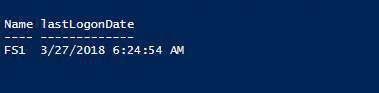
There is one computer, FS1, that has been not been logged on to for more than 30 days. The system will prompt for confirmation before deleting it from the domain:

If you want to disable, rather than delete, the inactive computer accounts, replace the Remove-ADComputer cmdlet with Set-ADComputer and -Enabled $false parameter and value.
Remember that it is critical to closely track all changes to computer accounts, so you can quickly spot any unwanted modifications and respond appropriately. Here’s how to monitor computer account deletions.